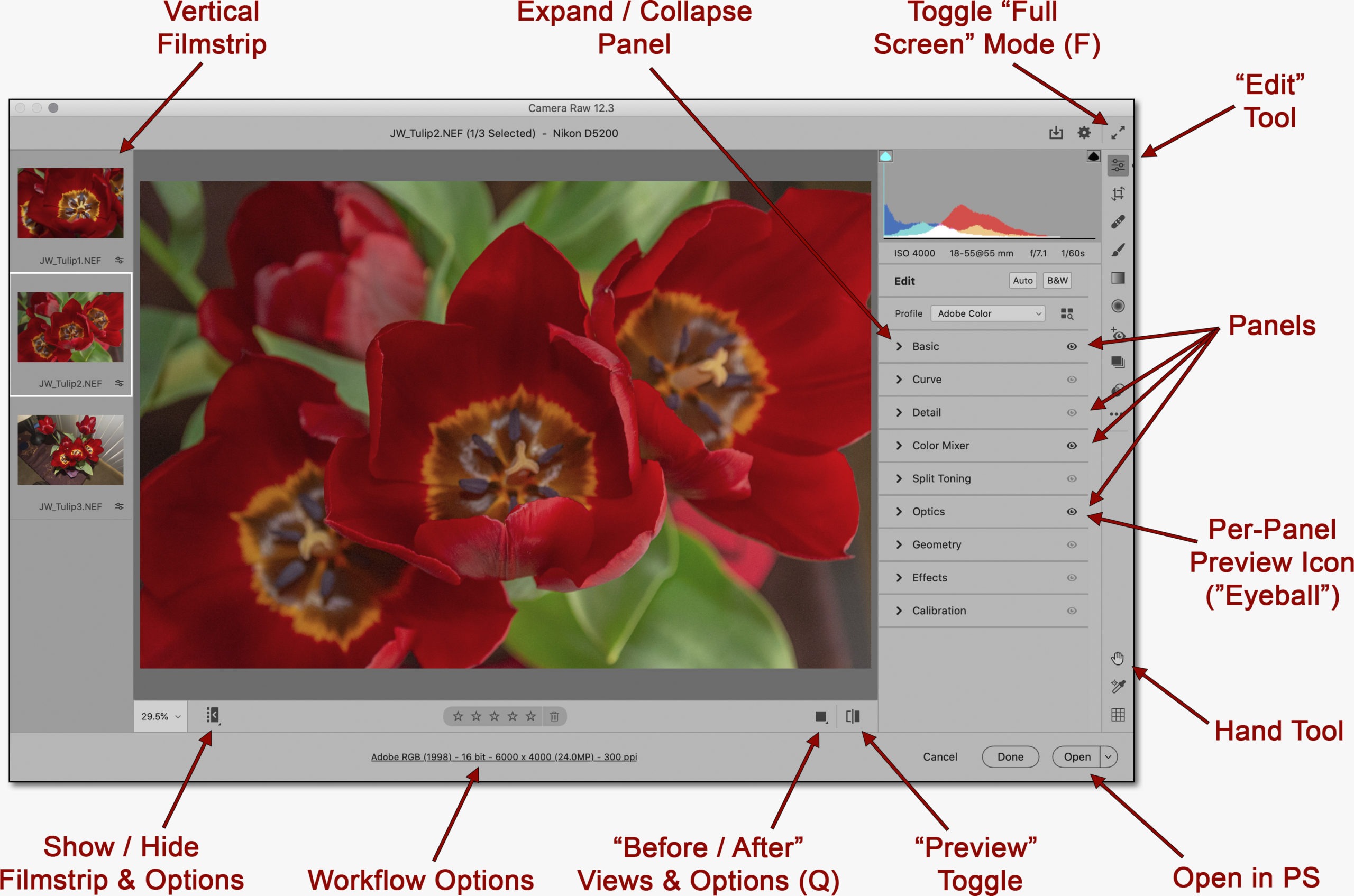
12/1/23 – this post has been updated: https://blog.main.wattsdigital.com/camera-raw-16-0-adobe-finally-gets-it-right-with-video/ ____________________________ Click once to embiggen & explore … _____________________________ Well, gollie … as Gomer Pyle used to say, “surprise, surprise, surprise!“ … and, shazam – was he ever the prognosticator! As you can see from the video & screen grab above (or if you’ve updated your CC apps in the last few days), Adobe has made radical changes to it’s Camera RAW plug-ins’ User Interface (UI) – – The new look is completely different. I know, I know – change can be frustrating, and at first, I was indeed
08/21 – See Updated Videos using Camera RAW 12.3 here: Click for more One of the most misunderstood (and mis-used!) concepts in digital post-processing is how to properly work with RAW files. • What to do with all that digital information? How do you work with the format correctly & maximize your image’s potential? • When enhancing your image from RAW, what are the “Goals”, and why? What the heck are you even aiming for? This video will answer those questions, and much more – enjoy! __________ Download the notes for this
Howdy to all, Class 5 is a “2-Fer”: 1) Color Management 101 (One Hour): • Proper Color Management allows you to accurately reproduce what you see on your monitor in printed form, whether it is to your photo inkjet printer or files you send to a custom lab. Being able to print with a great degree of consistency and accuracy saves you time, frustration, and money. • The old adage, “WYSIWYG” (What You See Is What You Get) readily applies when you are properly color-managed. John will show you the 3 steps to
So, have you ever asked yourself, “What makes a good color print, and how do I use the basics of Photoshop to achieve my desired results?” If so, then this video is for you! Using the K.I.S.S. (Keep It Super Simple) method, you’ll learn how to take well-exposed digital images and improve them, sometimes dramatically, with just a few key but critical functions. When it comes to a good color print, it’s essential that you know what you’re aiming for before you can properly use the tools in Photoshop. I mean, what IS color, anyway?? Get ready
Updated: 09/01/25 FYI, this is Part 2 of a 3-part series on this subject – Part 1 is here – Part 3 is here To see why Photoshop vs Lightroom is the “Wrong Question” (& much more), I’d encourage you to check out Part 1 (at the link above) before perusing Part 2 below – that way, some of the things discussed below will be put in their proper context … __________________ Wanna know why I don’t use Lightroom in my post-processing workflow? Read on … • I am, at my core, a custom photographic printer, and have been professionally since the
Updated 04/01/24: • Wanna see more free Photoshop videos like the one above? https://wattsdigital.com/free-photoshop-101-videos • Here’s more info about my free live & online Photoshop Meetups: https://wattsdigital.com/free-live-meetups-online ___________________ • Master File Creation and Proper Workflow should be essential elements in how you approach and use Photoshop, regardless of the version. • Creating a Master File is NOT for every image: iit’s exclusively for those images that are your best– – those images that you need & want to spend time with, doing all that’s necessary to make your image “pretty” • Here’s where
Updated 08/29/23- with Short YouTube Video: __________________________ Psssst – also wanna see the Adobe Camera RAW User Interface in action? WITH YOUTUBE VIDEO … https://blog.main.wattsdigital.com/camera-raw-16-0-adobe-finally-gets-it-right-with-video/ One of the most misunderstood (and mis-used!) concepts in digital post-processing is how to properly work with RAW files. What to do with all that digital information? How do you work with the format correctly & maximize your image’s potential? When enhancing your image from RAW, what are the “Goals”, and why? What the heck are you even aiming for? First, what is a RAW File? A Camera
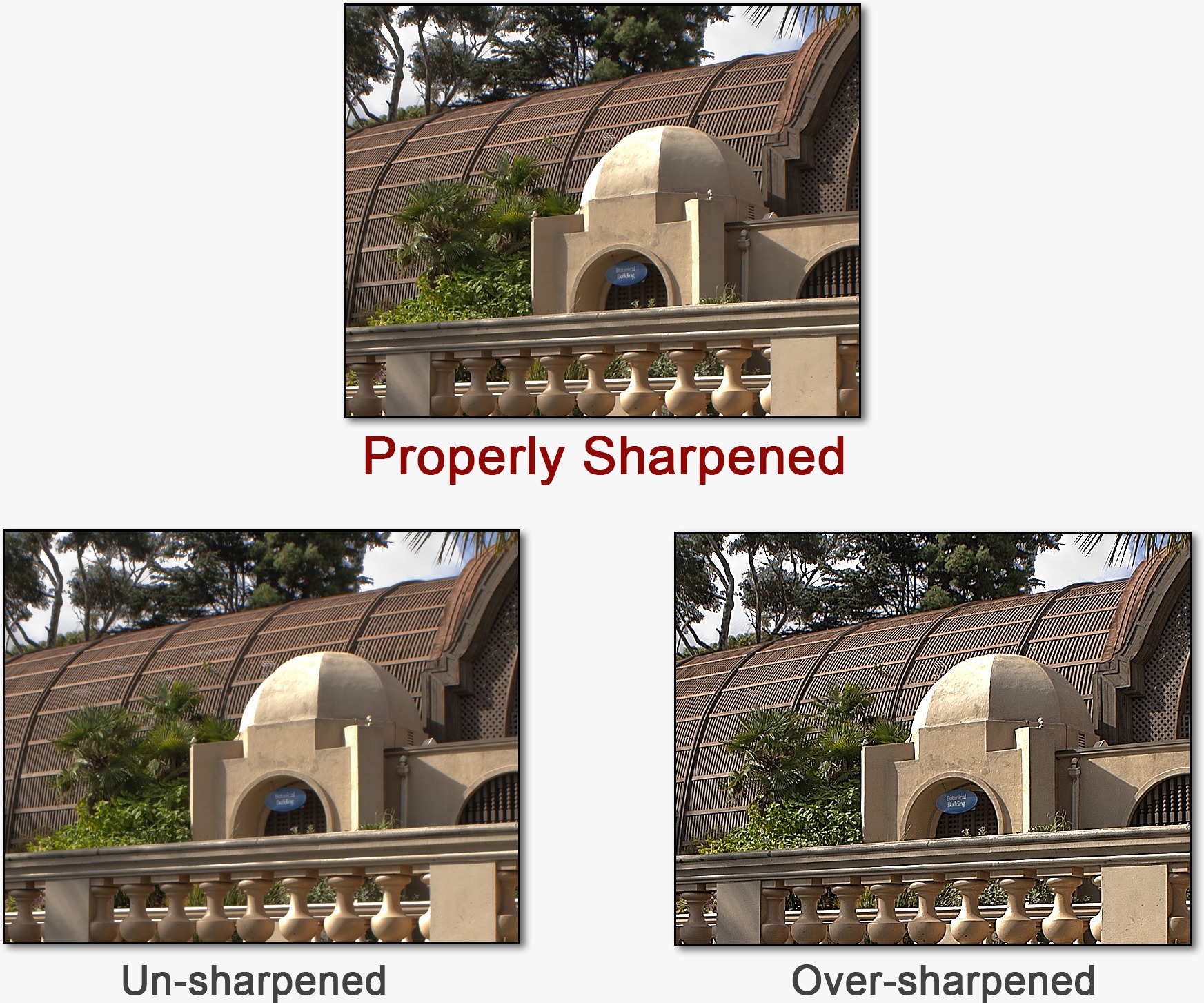
Updated 03/01/22 NOTE – For maximum clarity, you can zoom in on (or download) any image in this post! For best results, maximize your browser, then click on the desired image – navigate as needed. Having challenges getting your image sharpened properly in Photoshop? Try using this technique, rather than the generic Sharpening tools, which are not as effective and prone to over-sharpening – it’s also much harder to accidentally over-sharpen your image, and gives incredible results. This is a “non-destructive” technique, which means it will minimize throwing out unnecessary pixels. Without getting into
Updated 08/24/21 Most people have a love / hate relationship with Speed Keys, regardless of the software program. But they’re called Speed Keys for a reason – they can save you lots of time with repetitive functions. You should get into the habit of using a few basic Speed Key Combinations: Once you start to memorize these, you’ll significantly increase the speed with which you work. There are hundreds of speed key combinations — Don’t be over-whelmed, as you only need a handful. The 10 shown below are the ones that I believe you’ll find the most
Update 03/01/22: See even more on this subject in my post: Color Management 101 for Photographers”: https://blog.main.wattsdigital.com/?p=3858 There are 3 steps necessary to successful color management – Profiling your Monitor is “Step #1”. A properly calibrated & profiled monitor will closely match the output of your photo printer or favorite custom print lab. It’s crucial even if you don’t want to print your images, as it will allow you to see your image as accurately as possible – and in accordance with photo industry standards. Think of your monitor as your photographic “Window to the World”. But let’s face
Updated 08/26/21 Two questions from Patrick C in San Diego, CA: Should I be “soft proofing” my images before I send them to you? If so, do you provide any ICC profiles for your LightJet printer to view my images before uploading to you? Do you use ProPhoto RGB Color Space (or something else) as your working Color Space in Photoshop? The answers: Interesting questions – some real “In the weeds” stuff – let me put on my “propeller-head” hat, and we’ll look at these one at a time … _____________
Updated: 08/22/22 – BONUS – – For even more information on Master File Creation & Workflow in Action, see this additional post – WITH YOUTUBE VIDEO: https://blog.main.wattsdigital.com/video-photoshop-master-file-creation-workflow-in-action/ X Notes for the above video can be found here: https://main.wattsdigital.com/images/WattsDigital_ContrastColor_Notes_08-21.pdf ___________ Question: From Matthew S in San Diego, CA: “Once you capture an image in RAW (or a 16-bit scan), what is the best way to save the image for printing purposes? Or should I convert the image to another format? I typically convert everything to a max quality JPG. Supposedly any “lossy” degradation will be unnoticed to the eye, or so
Updated: 08/26/21 • By the way – for much more on “The Philosophy of RAW”, see my post here: https://blog.main.wattsdigital.com/?p=2215 I’ve been asked versions of these two questions so much lately that I had to share – In this post, we’ve got two important questions (and two timely answers) as seen from a “post-processing” point-of-view … _____________________ Question #1: From Kris K in Gilroy, CA: “You’ve mentioned shooting in 16 bit RAW files, and I’ve always used 8 bit JPG’s. What would be the advantages and disadvantages of using 16 bit versus 8
Updated 08/29/21 Rods and Cones are Nature’s Own, but our eyes will still deceive us … Our eyes are miracles that are created by God – but even God has a sense of humor! – Do not underestimate how easily our eyes (and by extension, our brain) can be tricked – Magicians make use of this fact! It has been my experience that of The Three Steps to Successful Color Management in Photoshop the most overlooked is #3: Assure that you have the proper Lighting Conditions and Perception. I want to prove my point on Perception (more
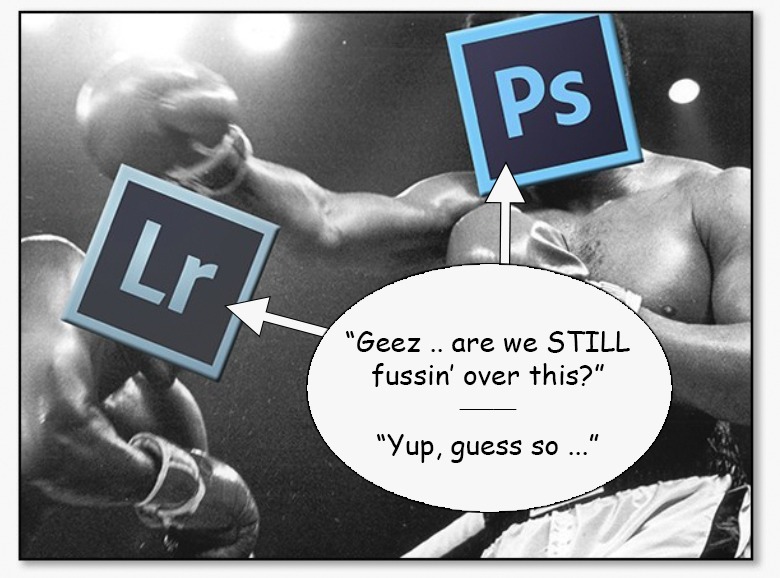
Updated: 09/01/25 – Plus, BONUS: See my short video from YouTube here: FYI, this is Part 1 of a 3-part series on this subject – Part 2 is here & Part 3 is here ________________ I don’t use Lightroom in my post-processing workflow – I don’t even have it installed on my computer (see Part 2 for much more on “why”) – but I’m constantly asked a version of this question over and over – “For working on my images, should I use Lightroom or Photoshop?” To me, that’s the wrong question, perhaps not
Updated: 05/01/19 … The Navigator Panel allows you to “navigate” around your image at large magnifications. • When your image is enlarged bigger than your Document Window, simply drag the “Red Box” with your mouse to the desired location • Notice that the magnification of your image shows at the bottom, along with Sliders to reduce and enlarge. • This is also a good time to review these navigation “Speed Keys” (see this post for the 10 essential ones), as this is where you’ll use them in conjunction with the Navigator Panel: To
Updated: 05/01/19 … In the last blog post, we discussed how to set up a proper Workspace with Panels. In this and future posts, we’ll explore some of these Panels in detail, starting with the Tools Panel and the Color Picker. The purpose of the Tools Panel and the Color Picker is to allow easy access to the some of the most commonly used tools and functions in Photoshop. There are over 50 tools contained in the Tools Panel, including access to the invaluable Color Picker, but don’t be overwhelmed, you’ll only need a handful of
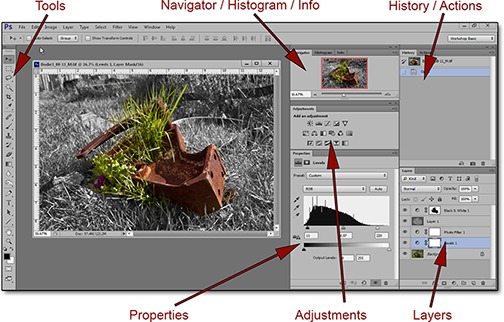
Updated: 09/01/22, and still relevant today! Note: Feeling adventurous? You should definitely watch the video, but perhaps I can save you some time – once a small file, “WD Basic 1.psw”, is properly loaded on your computer, only the 9 “essential” Panels discussed in the video will show up in your Photoshop Workspace. Easy installation instructions included (link near the bottom): https://wattsdigital.com/free-useful-downloads ____________________ Think of Panels as “miniature workspaces”, each accomplishing a different function. There are almost two dozen different panels available to you, but in the spirit of K.I.S.S., I would suggest that you start with just nine,
Updated: 09/09/21, & still relevant today! – BONUS: See my short video from YouTube below: Want to take advantage of the positives of High Dynamic Range (HDR) Photography, while bypassing all of those confusing HDR plug-ins and software (with their sometimes unpredictable and “plastic-looking” results)? Then you’re going to love this – you can make all of your adjustments in the powerful Adobe Camera RAW (ACR) plug-in that comes with Photoshop, instead of confusing third-party software… First, what is HDR? From Wikipedia: “It’s a set of techniques used in photographic digital imaging to reproduce a
Updated 08/30/21, & still relevant today … August 20, 2013 – So, have you been hearing about Photoshop CC lately? Welcome to the Brave New World of Adobe’s Creative Cloud, and all of the confusion that results from a revolutionary concept. Since it’s here to stay, it’s time to get your head INTO the “Cloud”. Concept: We’re all familiar with the traditional method of purchasing software, whether from Adobe or another company: install the software on your computer (say, Photoshop CS6), enter a key, and it’s yours to use in perpetuity – a “perpetual” license.