• Note 1: If you wanna see the functions of Adobe Camera Raw in action (with YouTube Video), then this separate post/video will show you the nuts & bolts of the overall Workspace: https://blog.main.wattsdigital.com/video-camera-raw-12-3-radical-changes-to-the-user-interface/ • Note 2: Also related (with short YouTube Video): Learn how to properly work with a RAW file (hint – most photographers don’t!) – The Philosophy of Adobe Camera RAW: https://blog.main.wattsdigital.com/the-philosophy-of-raw/ _____________________________ There’s a new version of Adobe Camera RAW, version 16.0. It has exciting new changes to the Workspace – it’s a more practical & logical interface! Frankly, I’ve been asking
The material in this blogpost comes from: • My Photoshop book called “Not Just Another Photoshop Book” • And, my Small Group Workshop called “The Power of Layer Masks in Photoshop” _______________________ There is incredible power in being able to work on your image in Photoshop “globally” (the whole image), as well as “locally” (just part of your image). Being able to localize your image adjustments is the digital post-processing equivalent of the legendary Ansel Adams’ & Fred Archers’ photographic Zone System – see this post for more as it relates to Photoshop: https://blog.main.wattsdigital.com/using-zones-in-photoshop/ • This is Part 3 of what will be
The material in this blogpost comes from: • My Photoshop book called “Not Just Another Photoshop Book” • And, my Small Group Workshop called “The Power of Layer Masks in Photoshop” __________ There is incredible power in being able to work on your image in Photoshop “globally” (the whole image), as well as “locally” (just part of your image). Being able to localize your image adjustments is the digital post-processing equivalent of the legendary Ansel Adams’ & Fred Archers’ photographic Zone System – see this post for more as it relates to Photoshop: https://blog.main.wattsdigital.com/using-zones-in-photoshop/ •This is Part 2 of what will be a
The material in this blogpost comes from: • My Photoshop book called “Not Just Another Photoshop Book” • And, my Small Group Workshop called “The Power of Layer Masks in Photoshop” ______________________ There is incredible power in being able to work on your image in Photoshop “globally” (the whole image), as well as “locally” (just part of your image). Being able to localize your image adjustments is the digital post-processing equivalent of the legendary Ansel Adams’ & Fred Archers’ photographic Zone System – see this post for more as it relates to Photoshop: https://blog.main.wattsdigital.com/using-zones-in-photoshop/ • This is Part 1 of
NOTE 07/15/23: this is the fifth in a series of posts called “Photoshop Quick Tips” – In this and further “Quick Tip” posts, you’ll discover basic but fundamental aspects of Photoshop, presented in bite-sized pieces – – short, concise, succinct, and to-the-point – enjoy! The “Quick Tip” video below is a snippet from one of my free live & online “Photoshop 101” Meetups – the full recording (& notes) can be found here: https://blog.main.wattsdigital.com/video-photoshop-101-class-2-control-your-contrast-color-07-22-20/ So, what makes a good color print and how do you use the basics of Photoshop to achieve it? There are eight basic
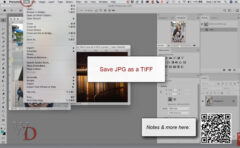
NOTE 06/23/23: this is the third in a series of new posts called “Photoshop Quick Tips” – In this and further “Quick Tip” posts, you’ll discover basic but fundamental aspects of Photoshop – presented in bite-sized pieces – – short, concise, succinct, and to-the-point – enjoy! The “Quick Tip” video below is a snippet from one of my free live & online “Photoshop 101” Meetups – the full recording (& notes) can be found here: https://blog.main.wattsdigital.com/study-video-photoshop-101-class-1-the-foundation/ “Save” Options When saving files, Photoshop gives you two main options: “Save…” and “Save As…”. You can find both of
NOTE 06/21/23: this is the second in a series of new posts called “Photoshop Quick Tips” – In this and further “Quick Tip” posts, you’ll discover basic but fundamental aspects of Photoshop presented in bite-sized pieces – – short, concise, succinct, and to-the-point – enjoy! The “Quick Tip” video below is a snippet from one of my free live & online “Photoshop 101” Meetups – the full recording (& notes) can be found here: https://blog.main.wattsdigital.com/study-video-photoshop-101-class-1-the-foundation/ 3 Main Ways to Open a File in Photoshop: Go to the “File” Menu -> “File” -> “Open …”
NOTE 06/14/23: this is the first in a series of new posts called “Photoshop Quick Tips” – In this and further “Quick Tip” posts, you’ll you’ll discover basic but fundamental aspects of Photoshop presented in bite-sized pieces – – short, concise, succinct, and to-the-point – enjoy! The “Quick Tip” video below is a snippet from one of my free live & online “Photoshop 101” Meetups – the full recording (& notes) can be found here: https://blog.main.wattsdigital.com/study-video-photoshop-101-class-1-the-foundation/ Changing Numerical Values: There are three main ways to change the numerical values in Photoshop’s various tools,
Here’s a terrific overview showing you how to build a Master File in Photoshop, using my proven Workflow Chart (also included in the notes), which is designed specifically for photographers. This video is a rapid-fire, concise & focused look on how to get the absolute most out of your digital capture – it’s also shows pertinent QR Code links, which will allow you to easily branch out into more specific areas of study. Here’s a link to the referenced notes: https://main.wattsdigital.com/images/WattsDigital_22-SD-Fair-Seminar.pdf – more useful links at the front of the notes. BONUS: For more
Updated 08/22/22 (Original Post Still Below) Well, Shazam – or as Emily Litella used to say: “Never Mind”! I guess Adobe FINALLY received enough complaints to make it simple for ANYONE to eliminate that ugly blue “Share” button – hallelujah! This works starting with v 23.5.0. Behold – – the new “Neutral Color Mode”: 1) Go to Photoshop Preferences: “Edit” – >“Preferences…” on a PC, “Photoshop” -> “Preferences…” on a Mac 2) Go to the “Interface” Tab 3) Click on “Neutral Color Mode” – easy peasy – thx, Adobe!! More here: https://helpx.adobe.com/photoshop/using/preferences.html#neutral-color-mode _________________________ Original Post (this still works
One of the critical factors in using Photoshop properly is to Standardize your Workflow: Contrast should be adjusted before Color Correction, Cropping should be done before Sharpening, and so on. With that in mind, you’ll find a handy downloadable Photoshop Workflow Chart below, designed specifically for Photographers. • By the way, the picture above is a visual representation of a proper workflow for photographers – the downloadable version below is a detailed “step-by-step” checklist. ___________ Notice that the downloadable Workflow Chart is divided into 4 sections which further clarify a proper workflow (see vertical boxes on
07/13/22 – BONUS VIDEO from my YouTube Channel: ______________________ What is it, and why do you need it? One of the critical elements in successfully bringing an image from camera to its printed form is Color Management. • Proper Color Management will allow you to print with a great degree of consistency and repeatability, whether it’s on your home inkjet photo printer or through a custom print lab. • It allows you to print what you see on your monitor with a large degree of accuracy. The old adage, “WYSIWYG” (What You
Updated 08/05/23- with Short (under 3 minutes)YouTube Video: The method / procedure described below is inspired by the great Ansel Adams’ Zone System – – consider this the post-processing “digital equivalent” for Photoshop (see more here, near the bottom) … Also, this blogpost is material straight from my personalized online Small Group Workshop, “The Power of Adjustment Layers in Photoshop”: https://wattsdigital.com/small-group-workshops ___________________ By dividing your image into separate & non-overlapping “Zones” of contrast, color, density (brightness), sharpness, etc., you’ll have complete creative control, performance & flexibility over how your overall image looks. • These “Zones” are created
Updated 02/01/25 Redundancy, Redundancy, Redundancy … I was 13 years old when man triumphantly walked on the moon. One of the greater attributes of NASA and the space program at the time was the concept of redundancy. It was one of the reasons that Apollo 13, despite all of its incredible challenges, made it back safely. There was a backup for every system, and even the backups were frequently backed up. In the harsh and unforgiving environment of outer space, nothing was left to chance. You should be treating your digital files the same way. This lack of redundancy in properly
• Are you brand new to Photoshop? A total beginner? Or, are you just digging into the program, and not sure what to do next? Or, are you having challenges with the “basics”? • Do you need guidance – a “Lesson Plan”, if you will – on how to learn Photoshop for Photographers? Do you need a “Photoshop Coach”? If so, read on … • Photoshop is indeed a complex program – but as a photographer, you’re only going to need to use 10-15% of the programs’ functionality to achieve your best results, and
Updated – 10/15/21 – with Video: The Crop Tool allows you to crop to a portion of an image to enhance the subject matter, remove an unwanted object, and/or improve your composition. Cropping your image in Photoshop is one of those rare functions that has both creative AND procedural aspects to it. This blogpost is about the procedural – the “How-to”. Once you fully understand the “How-to”, the creative aspect is yours to discover & explore as a photographer. Where to Find: The Crop Tool can be found in the Tools Panel, or by
Updated 08/19/23- with Short YouTube Video: PLEASE NOTE: Due to an abundance of requests (especially since I’m not a big proponent of Lightroom), I submit the following post for your consideration … ___________________ Amongst the vast majority of photographers, the 2 most popular programs used in selecting, culling & identifying those awesome images deserving of a Master File (created in Photoshop) are Bridge & Lightroom. When it comes to digital post-processing, I’m a YUGE advocate of the K.I.S.S. (Keep It Super Simple) method – – life is complicated enough, don’t ya think? So, I use Bridge exclusively (rather than Lightroom), mainly
So, have you ever asked yourself, “What makes a good color print, and how do I use the basics of Photoshop to achieve my desired results?” If so, then this video is for you! Using the K.I.S.S. (Keep It Super Simple) method, you’ll learn how to take well-exposed digital images and improve them, sometimes dramatically, with just a few key but critical functions. When it comes to a good color print, it’s essential that you know what you’re aiming for before you can properly use the tools in Photoshop. I mean, what IS color, anyway?? Get
• New to Photoshop? Need to brush up on the basics? Then you should watch this video to learn some foundational stuff! • This is the first of 5 free “I-just-got-Photoshop-now-what” online Meetups – recorded live, ALL focusing on the fundamentals. • Think of this Meetup as the Roadmap to Photoshop – – I’ll show you how to effectively navigate through a complex program, showing those functions you really need and want as a photographer. You’ll learn what’s important and what you can ignore. Without this Roadmap, you’ll truly be lost. • We’re going to talk
Updated: 09/01/25 FYI, this is Part 3 of a 3-part series on this subject – – I’d encourage you you to check out these 2 previous blogposts first to put things in their proper context: • “Photoshop vs Lightroom? Wrong Question!” • “Photoshop vs Lightroom? Wrong Question! – – Part 2” ____________________________ Those that have worked with me know that I have a “love/hate” relationship with Lightroom (mostly hate, because of it’s continued mis-use!). I am not fond of the program (an understatement!), and personally don’t use it (I use Bridge, mainly for its sheer simplicity).