09/01/21 – Updated, and still relevant today … Note: Sadly, Dave passed away in October of 2020. He will be sorely missed – both as an accomplished individual in his chosen fields – but also as a friend … ______________ 05/01/2013 – Dave King’s “must-read” on judging at the San Diego County Fair Photo Contest last Sunday is wisdom for more than just photo contest entrants – – this is great stuff! Dave teaches Photography at San Diego City College, and eloquently makes the same observations I had as a Judge in the same contest: Dave’s
10/05/20 – This post has been updated here: https://blog.main.wattsdigital.com/?p=3561 ______________________ So, you’ve used previous versions of Photoshop, and now you’ve got CS6. You’re ready to crop your image, and – – “Whaaa?! #%&* – Egads! This new Crop Tool is really different!” Yes, it is – but once you know how it works and get used to it, you’ll never want to go back. Purpose: The Crop Tool allows you to crop to a portion of an image to enhance the subject matter, remove an unwanted object, or improve your composition. Where to Find: You can find the
07/01/21 – This subject has been updated in a new post, with VIDEO: Click Here for more … _________________ Think of Panels as miniature workspaces, each accomplishing a different function. There are almost two dozen different panels available to you, but in the spirit of K.I.S.S., I would suggest that you start with just nine, and add those you deem necessary as you gain more experience with Photoshop. Below is a representation of the panels I would suggest that you set up on your Photoshop desktop to create a proper workspace: Photoshop gives you a set of predefined workspaces:
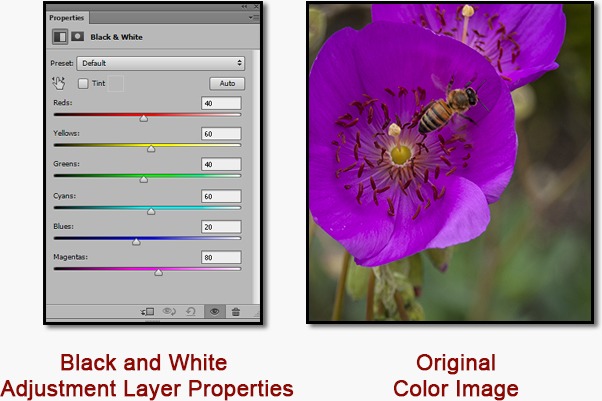
Updated 08/24/21 A question from Dave W in Maui, Hawaii: Can you create a black & white image from a color digital image? My camera has a B&W setting, so should I start there first? And can these be printed properly? Mahalo! Answer: Yes, you can create stunning black and white from your color images! I’d strongly recommend shooting all of your images in color, then convert your images to Black and White in Photoshop after the fact. Here’s why: • More Information: An RGB (color) image has 3 times as much information
8/27/21 – This post has been updated – – click here: https://wattsdigital.com/custom-printer-profiles • More on Color Management for Photographers: https://blog.main.wattsdigital.com/color-management-101-for-photographers/ _________________ Updated: 03/01/15 I’ll keep it simple: You cannot use Photoshop CS6 / CC to create your Custom Printer Profile – the “why” is too complicated to get into, but the “No Color Management” option no longer exists (CS4 and earlier), and there is not a “workaround” such as that used in CS5. So you have three choices: 1) The Best Choice: Use an older version of Photoshop to create your Profile – Yes, you can install more than one version
08/24/21 – This post has been updated, with VIDEO: https://blog.main.wattsdigital.com/photoshop-cs6cc-the-navigator-and-history-panels-video-tutorial/ Question: “I only see part of the image on my monitor because I’ve zoomed in or it’s blocked by panels, other images, etc. – How do I navigate around and see different parts of my image?“ Answer: Use the The Navigator Panel in your Workspace – it allows you to “navigate” around your image at large magnifications. If it’s not in your Workspace, go to the “Window” menu -> “Navigator”. When your image is enlarged bigger than your Document Window, simply drag the “Red Box” with your mouse to
Question – From Frank S. in Weymouth, MA: “From a photographer’s standpoint, what are the differences between the full version (i.e., CS 5) and the Elements version of Photoshop, and which would you recommend?” Answer – The biggest consideration in deciding which version to purchase, of course, is price. The full version (CS5) costs around $700, versus $100 for Elements – a considerable difference. If cost is not a major issue, then I’d strongly recommend you invest in the full version – the “learning curve” is essentially the same between the 2 versions. That being said, Elements is
08/29/21 – The answer to this post is still relevant, but has been further updated in a new post – Click here Question – from Ken Johnson: I have read some very confusing things regarding the effectiveness of the “Gamut Warning” when soft proofing in Photoshop. Is the Gamut Warning of any value when editing RGB images for photo-based ink jet printers and, if not, what is the best way to detect and deal with out of gamut colors? Answer: Thanks for an interesting but complex question – I’ll try to avoid being overly-technical … The answer applies
Got an iPhone, iPad or a Smartphone? Been playing with the Camera and Photo Apps? Been intrigued by the power of your phone camera? Wanna share your favorite pics, apps and social sites? Wanna participate in smartphone photo contests with prizes? You’ve found the place… This is “just for fun”, but we can also learn something about photography & Photoshop … Smartphone and tablet cameras (and particularly the iPhone) have done quite a few things for photography – Just think: Your camera is always with you, and the simplicity of the cameras and apps allow us to get back
It’s time for the San Diego County Fair Exhibition of Photography, and this year I am again honored to be a judge. And again this year, I am going to be giving a number of Photoshop and Color Management seminars – – If you are in Southern California during the fair, come on by – – I’d love to see you there! Click Here to download a PDF of my schedule … Cheers, John 🙂
Updated – 08/27/21 The “Color Wheel” will help you visualize how the Primary Colors – –Red, Green and Blue – – and their corresponding Complementary Colors – – Cyan, Magenta, and Yellow – – interact with each other. It’s a terrific visual reference tool – It will help you better understand your color photography, particularly while in Photoshop or other post-processing software. By request, here’s a Downloadable and Printable JPG of the Color Wheel for use in color correction in Photoshop and other applications – – Feel free to share it, and enjoy! For more
Updated: 09/21/21, & still relevant today! BONUS – See more at this post, WITH VIDEO: https://blog.main.wattsdigital.com/we-dont-need-no-stinkin-hdr-hassles-use-acr-instead/ _________ Here’s a letter from one of my clients: Hi John, Thanks much for the post on HDR – that looks like wonderful software! A question: If I shoot in RAW, isn’t there enough dynamic range in one RAW file to achieve the same results? Just wondering… Ann S. Great question, Ann! The short answer: Not always. Even shooting in RAW, & depending on the scene to be photographed, one file cannot always get the full dynamic
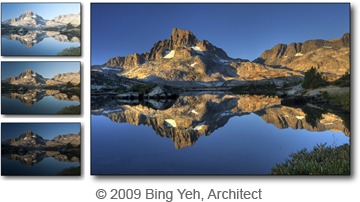
Updated: 09/21/21, & still relevant today! BONUS – See more at this post: https://blog.main.wattsdigital.com/we-dont-need-no-stinkin-hdr-hassles-use-acr-instead/ _________ For those of us from the “old school” of photography, one of the things we miss most about film was the large Dynamic Range that was available to us – – It’s just missing in most DSLR’s and digital images. How to make up for this? Explore High Dynamic Range (HDR) Photography! High Dynamic Range (HDR) Images could very well be the “Missing Link” in Photographic Digital Imaging; I believe that it’s the way photography is headed in the future
Here’s a taste of things to come – A sample video on Photoshop Levels from my upcoming Video Series, “Photofinishing with Photoshop” … [flashvideo file=wp-content/gallery/Levels_1.flv /] Enjoy! Don’t forget to leave a comment and let me know what you think… Cheers, John 🙂
Updated 04/01/22 ____________ Now you’re able to sit in front of your computer and spend time learning any aspect of Photoshop “one-on-one” from John Watts – live and interactive, from the comfort of your home or office – using GoToMeetings’ simple interface and the power of the Internet. More here: https://wattsdigital.com/1-on-1-web-instruction • We’ll be working on YOUR images, and at YOUR pace – plus, you can be assured of privacy, since we’re NOT sharing webcams – only our voices & monitors! • Subject ideas: Build a “Master File” from A to Z, Layer Mask Basics, Proper Cropping techniques, Dodging
12/01/22 – This subject has been updated in a new post – check out my free live & online “Photoshop 101” Meetups: https://wattsdigital.com/free-live-meetups-online 0I/16-09 – – just added a new free Webinar on Photoshop Curves – – Come and explore the power of Curves, and enjoy a whole new dimension to what you can accomplish! Here are the other subjects being covered right now: Photoshop – Keep It Simple! Color Management 101 What’s New in Photoshop CS4 Layer Masks Working with RAW Images To see what it’s all about, see a short sample video and to sign up, Click Here – –
FYI – Just added: “Working with Photoshop’s ‘Adobe Camera RAW’ Plug-In” “What’s New in Photoshop CS4?” For More Information and to Sign Up, Click Here… I’d also strongly recommend that you sign up right away – – Each Webinar is limited to 10 participants and fill up quickly. Cheers, John 🙂
01/04/21 – Updated – – see this link: https://www.wattsdigital.com/San_Diego_Meetups.html _______________ Hello there! By popular request, I am now offering Free Live and Interactive Webinars on subjects related to Photoshop, Digital Printing, and Color Management. These webinars will allow you to watch the desktop of my computer “real-time” and listen to me as I explain what I am doing. At the same time, if you have any questions, you can type your question, and I will answer it! I will be doing a minimum of 2 webinars per week. These webinars are “browser-based” on your computer, and are limited
06/22/21 – Although the information is still accurate, this post has been updated for clarity: https://blog.main.wattsdigital.com/?p=3858 This is the 3rd of 3 posts on implementing proper Color Management into your Photoshop workflow. In the first post, I discussed the Three Steps to Successful Color Management as well as how to properly Profile your Monitor. In the second post, I talked about Printer Profiles. Now let’s talk about Soft-Proofing… Step 4 (Optional) – Soft-Proof Your Image in Photoshop (not available in Elements) The purpose of Soft Proofing is a previewing procedure that Photoshop uses to “see” the results of
08/01/22 – This subject has been updated in a new post – WITH VIDEO: https://blog.main.wattsdigital.com/color-management-101-for-photographers/ _____________ This is the 2nd of 3 posts on implementing proper Color Management into your Photoshop workflow. In the last post, we discussed the Three Steps to Successful Color Management as well as how to properly Profile your Monitor. Now let’s talk about Printer Profiles… Step 2) Use the Proper Printer Profile or Create a Custom Printer Profile A Printer Profile makes the most out of your printer’s capabilities by characterizing the behavior of your printer/ink/paper combination. With a Printer Profile, in combination